Showing posts with label Salesforce. Show all posts

Friday, November 28, 2014

SOQL Query Editor as Chrome Extension

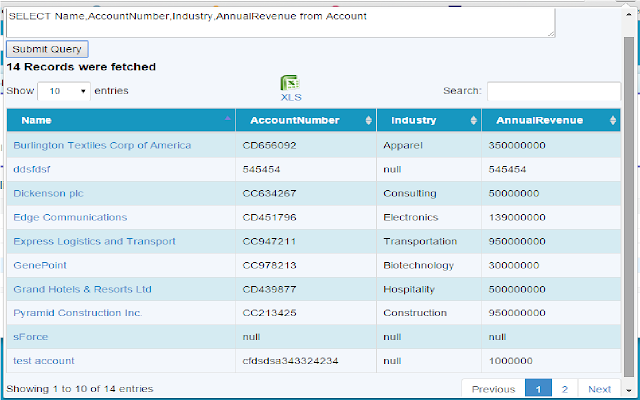
I as a developer always need to query Salesforce.com from developer console. However I feel its quite slow.

This tool allows you to query right from your chrome extension and show results beautifully. And best part, you can download results in excel :)

Do try this - https://chrome.google.com/webstore/detail/salesforce-soql-query-edi/fcbnphbbaaommndlpdaldnfejndammcc


Wednesday, February 13, 2013

Visualforce popup scrollbar issue for Mozilla

Did you ever try to open up popup window from visualforce using javascript? Something like

window.open('/apex/ContactDetail?id=' + conId,'','location=no,resizable=no,toolbar=no,status=no,menubar=no');

The above code works for all browsers other than new versions of Mozilla Firefox. You need to add extra tag in the method -

"scrollbars=yes"

So the method will be -

window.open('/apex/ContactDetail?id=' + conId,'','location=no,resizable=no,toolbar=no,status=no,menubar=no,scrollbars=yes');

Date Picker in Visual force

Below is the example to add to a Date Picker on <apex:inputText> for the Date/ String fields in visual force:

<apex:inputText label="Start Date" value="{!dateVariable}" onfocus="DatePicker.pickDate(false, this, false);"/>

Here 'dateVariable' is a variable being referred from controller.

Tuesday, February 12, 2013

Salesforce.com known issues

The new Salesforce.com release has a bunch of knowns issues which can be tracked here -

http://success.salesforce.com/issues_index

Thursday, October 25, 2012

Enhanced list views on a Visualforce page

Enhanced lists are used when you want to display a specific list view for a standard or custom object, rather than having all list views available for the user to select.
Step 1 – Create the list view
Go to the standard or custom object and click on the Create New View next to the Go button. Create the view and click on Save. When the page has reloaded, you will notice in the url a 15 digit id has been created for your view. Copy or make a note of the id.


Step 2 – Add code to your visualforce page
Add the following bit of code to your visualforce page, replacing the listid with your id:
<apex:enhancedlist type=”Lead” height=”730″ customizable=”false” rowsPerPage=”25″ Listid=”00B30000007wesH” />
Change customizable to equal true if you want your users to be able to edit the filters on the view. Once saved, you should find your visualforce page displays an enhanced list similar in appearance to the image below.

Hide Salesforce Logo

You can hide the logo from top using the javascript below.


<script language="JavaScript">try{var pa=document.getElementById("phHeaderLogoImage"); pa.style.display = "none";}catch(err){alert('There was an error on this webpage='+err.description);}</script>


You can either use it in visualforce page or add it in homepage components.

Saturday, April 28, 2012

Copy related list from Lead to Account/Contact/Opportunity


There is a salesforce limitation that when a Lead is converted to Account, all the related objects records are lost. E.g. for a Lead, there is a related object named products in which a lead is interested. So for a lead, we can add multiple products in the Lead related list. But when we convert lead to Account, all the products related to Lead are gone!!

So for this, I have written a small code which explains how using a small trigger and few fields, we can retain the products by linking them to account, opportunities and contact. 

I have used a general term CustomObject__c(replace it with you real related object name).

Step 1)For each custom object related to Lead we need to introduce 3 fields.
  -Account__c
  -Contact__c
  -Opportunity__c

Step 2) Write a trigger on before update event on Lead viz. LeadBeforeUpdate
trigger LeadBeforeUpdate on Lead (before update) {
//This trigger will associate a Custom Object record with the new contact and account when Lead is converted
//The Custom Object is associated to an opportunity only if an opportunity record exist on the Lead.
   
    Set<Id> leadIds = new Set<Id>();
    Map<Id,Id> LeadIdContactId = new Map<Id,Id>();
    Map<Id,Id> LeadIdAccountId = new Map<Id,Id>();
    Map<Id,Id> LeadIdOpportunityId = new Map<Id,Id>();


    for (Integer i = 0; i < Trigger.new.size(); i++){
        if (Trigger.new[i].IsConverted == true && Trigger.old[i].isConverted == false){
             leadIds.add(Trigger.new[i].id);
             LeadIdContactId.put(Trigger.new[i].id,Trigger.new[i].ConvertedContactId);
             LeadIdAccountId.put(Trigger.new[i].id,Trigger.new[i].ConvertedAccountId);
             LeadIdOpportunityId.put(Trigger.new[i].id,Trigger.new[i].ConvertedOpportunityId);


        }
    }
   
    //Create a list of CustomObject__c to be updated
    List<CustomObject__c> CustomObjectsToUpdate = new List<CustomObject__c>();
       
           
    List<CustomObject__c> customObjectEntries = [select Contact__c, Opportunity__c, Account__c, Lead__c from CustomObject__c where lead__c in :leadIds];       
   

    for (Lead lead : [select id,ConvertedContactId,ConvertedOpportunityId,ConvertedAccountId from Lead where id in: leadIds])  {
             for (CustomObject__c CustomObject : customObjectEntries) {
                if (CustomObject.Lead__c == lead.Id) {
                    CustomObject.contact__c = LeadIdContactId.get(lead.id);
                    CustomObject.opportunity__c = LeadIdOpportunityId.get(lead.id);
                    CustomObject.account__c = LeadIdAccountId.get(lead.id);
                    CustomObjectsToUpdate.add(CustomObject);
                 }
            }
     }

     if(CustomObjectsToUpdate.size()>0)
         update CustomObjectsToUpdate;
      
} //End of trigger


Note: This trigger will work for multiple records to be copied and is bulk efficient.